Storyblock Open Storyblock

What changed, and when

Every version of Storyblock, newest first: 13 of them, from the first build on 14 October 2026 to version 1.1.0 on 27 November 2026.

1.1.0

Latest

Scene overview
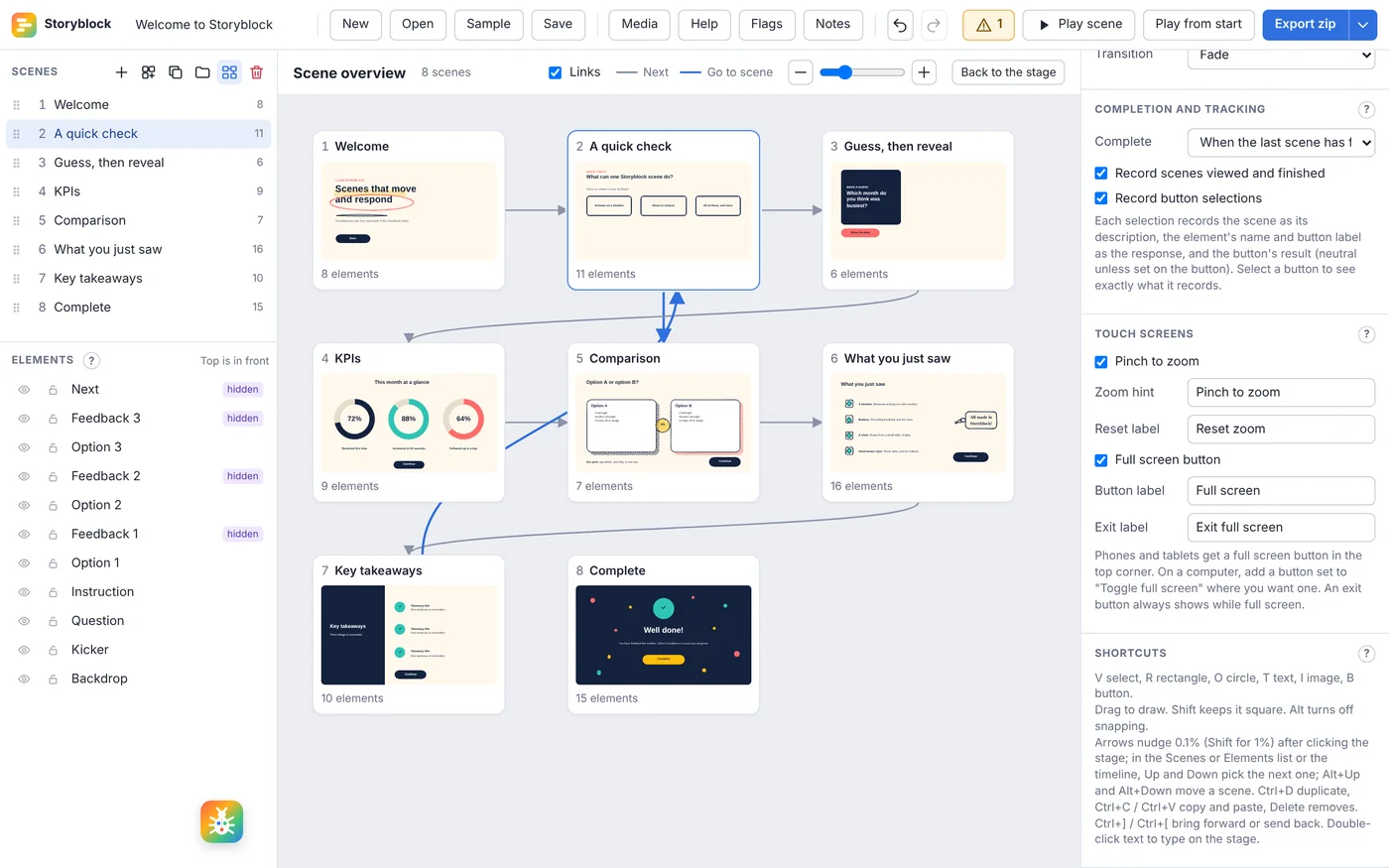
The scene overview: eight scenes as small pictures in rows, with grey arrows from each scene to the next and blue lines where buttons jump to another scene.

Every scene at a glance, with lines showing where its buttons lead.

  • The overview button above the scene list swaps the stage for a picture of every scene, in order. Click a scene, or move to it with the arrow keys and press Enter, to open it.
  • Links draws leader lines with arrows from each scene to the scenes its buttons lead to: grey for Finish the scene, blue for Go to scene. Forward jumps arch over a row and jumps back run under it, and pointing at a scene brings its own lines forward.
  • Five picture sizes, from small to large.
  • Each picture notes the scene's group, whether it only shows on a flag, and when it has no way on.
  • Scene rows have a grip to drag them by, and Alt+Up and Alt+Down move the selected scene. The buttons above the list are now add, add from a template, duplicate, group, overview and delete.
1.0.0

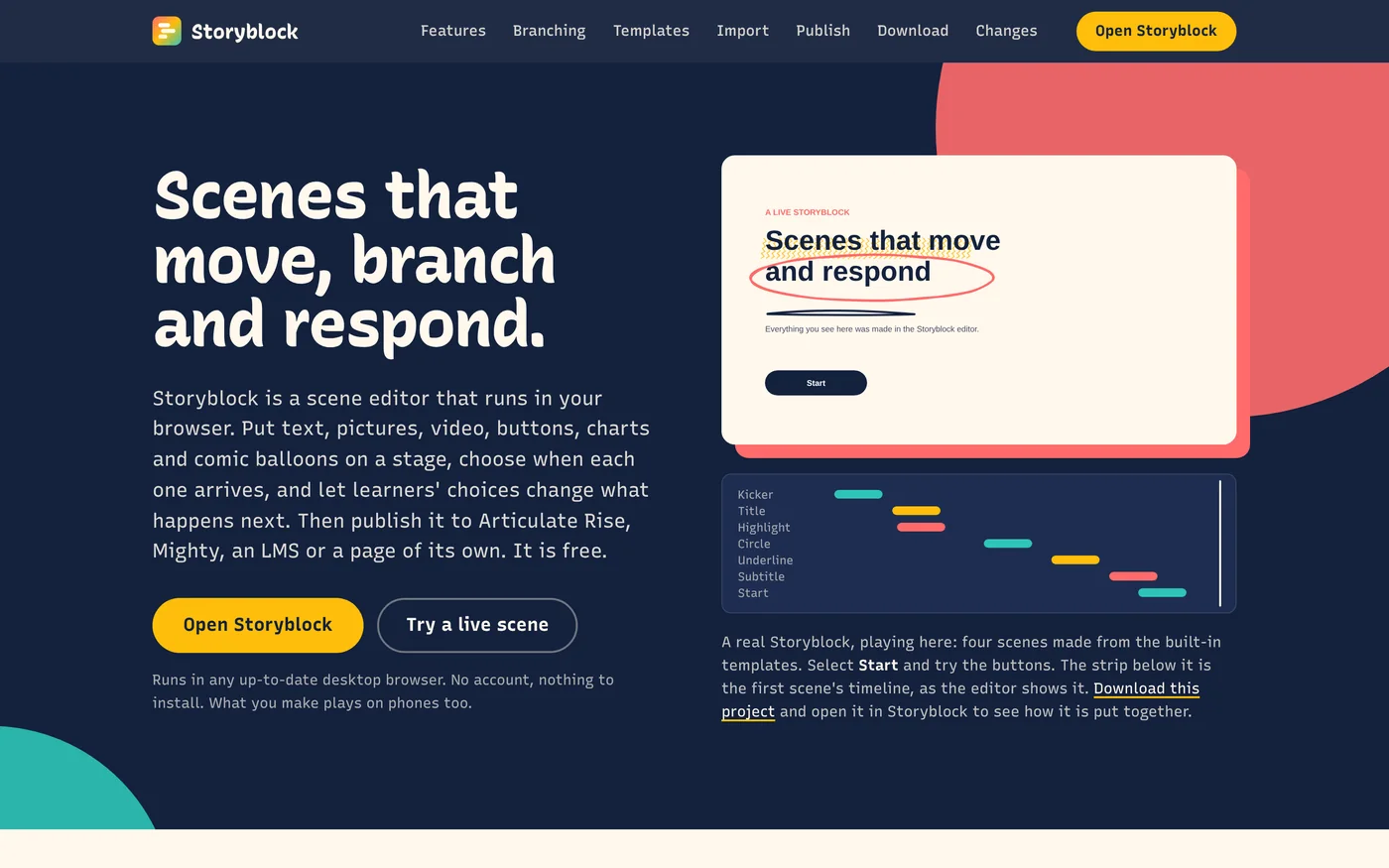
A front page

The front page: the headline Scenes that move, branch and respond, beside a live Storyblock scene and the timeline of its entrances.

storyblock.frumbert.org now opens on a page about Storyblock, with a live scene to try and everything to download.

  • The front page describes the editor, with pictures of its main features, and plays a live Storyblock made from the built-in templates.
  • Downloads: the app (the editor with its help pages, for any web server), the source code with its build script, and the live demo as a project file.
  • The editor itself is at storyblock-editor.html, one click from every page.
  • A new social preview picture, and the front page, the editor and every help topic in the sitemap.

0.11.0

Return buttons, and hiding while you work

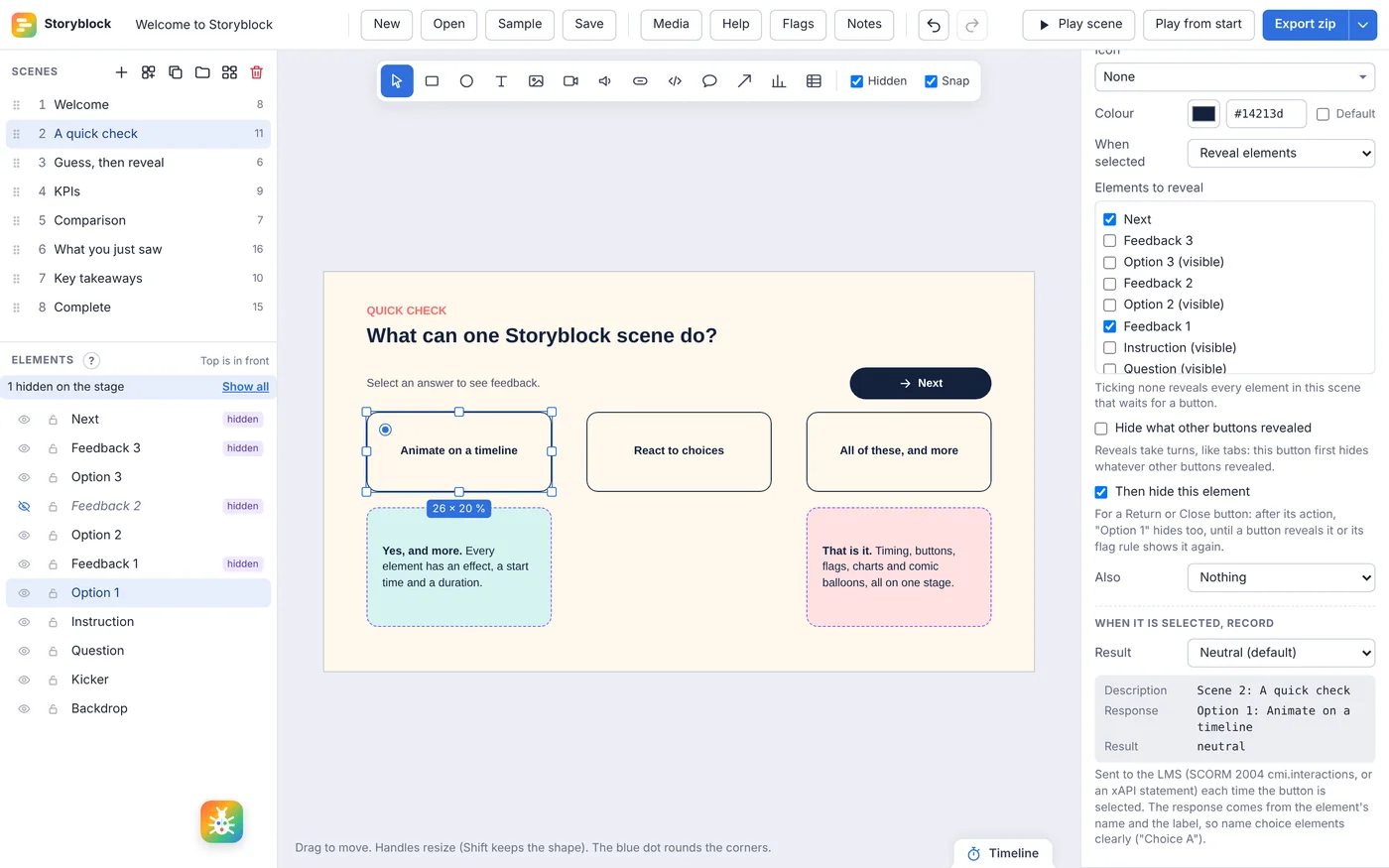
The quick check scene with an answer button selected: its settings reveal feedback and tick Then hide this element, and in the Elements list one feedback element is hidden on the stage with a crossed-out eye.

Feedback that tidies itself away, flag rules that work both ways, and a way to see under an element.

  • A button that reveals or hides elements can also hide its own element: Then hide this element, for Return and Close buttons. In the Mighty form too.
  • Flag rules follow the flag both ways. An element shown when a flag is set hides again when it is cleared, and one shown while a flag is not set comes and goes with it.
  • The eye beside each element hides it on the stage while you work on what is underneath. Learners still see it; Alt-click hides every other element instead, and opening another scene shows them all again.

0.10.0

Button icons, results and arranging

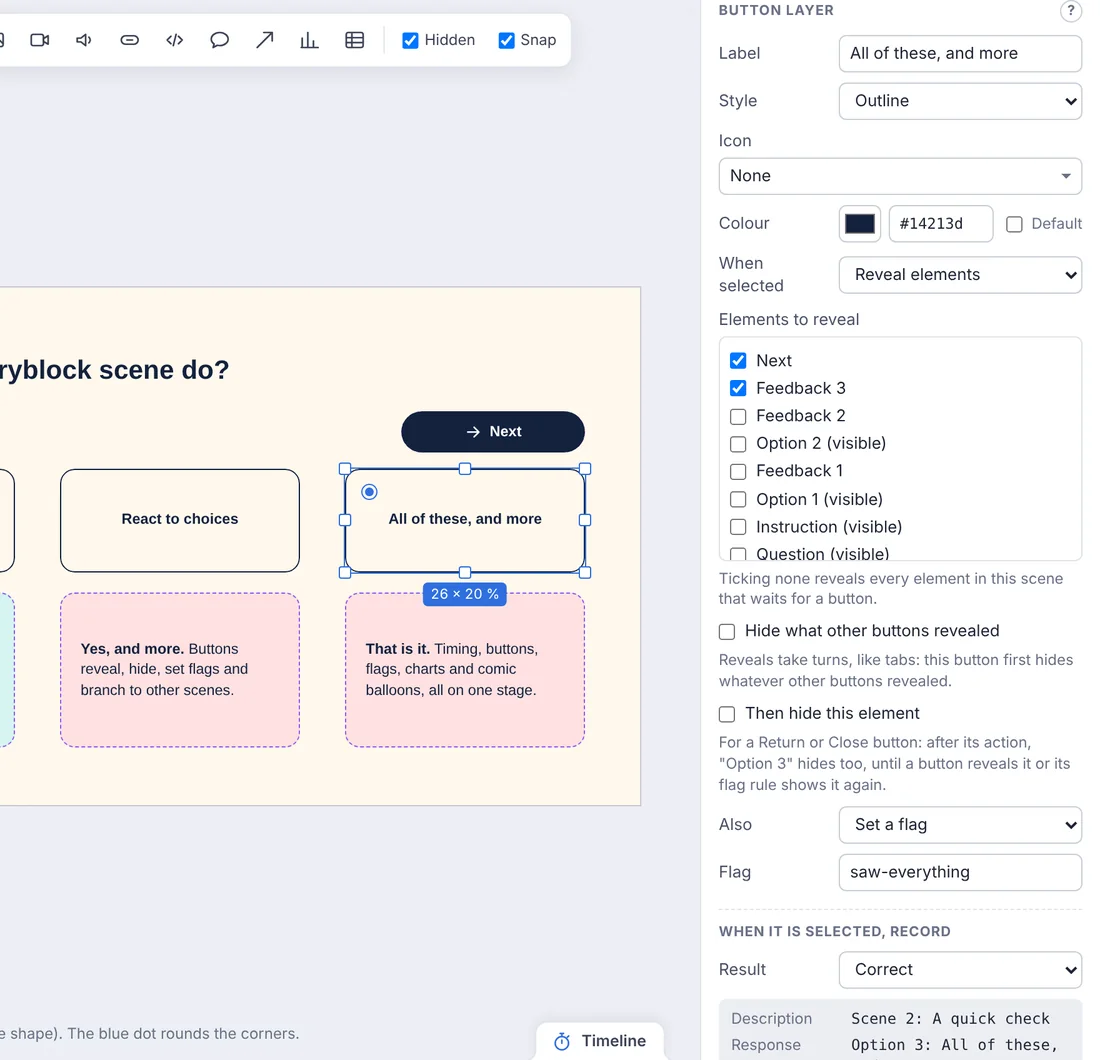
A quick check scene with one answer selected. Its settings show it reveals feedback and a Next button, sets a flag, and records a correct result.

Buttons say more, and picked elements line up.

  • Icons on buttons: 43 of them, to the left of the label, or on their own with the icon's meaning read out as the button's name. In the Mighty form too.
  • A button can record a result (correct, incorrect, unanticipated or neutral). Selections record the scene, the element's name and the label, and the inspector shows exactly what is sent.
  • Arrange: align, distribute and match the sizes of picked elements, within their own bounds or across the stage.
  • Pictures uploaded in the Mighty form use its own alt text control; the separate Alt text field is for linked pictures.
  • Undo keeps the picked elements picked.

0.9.0

Watch to continue, cropping and fitting text

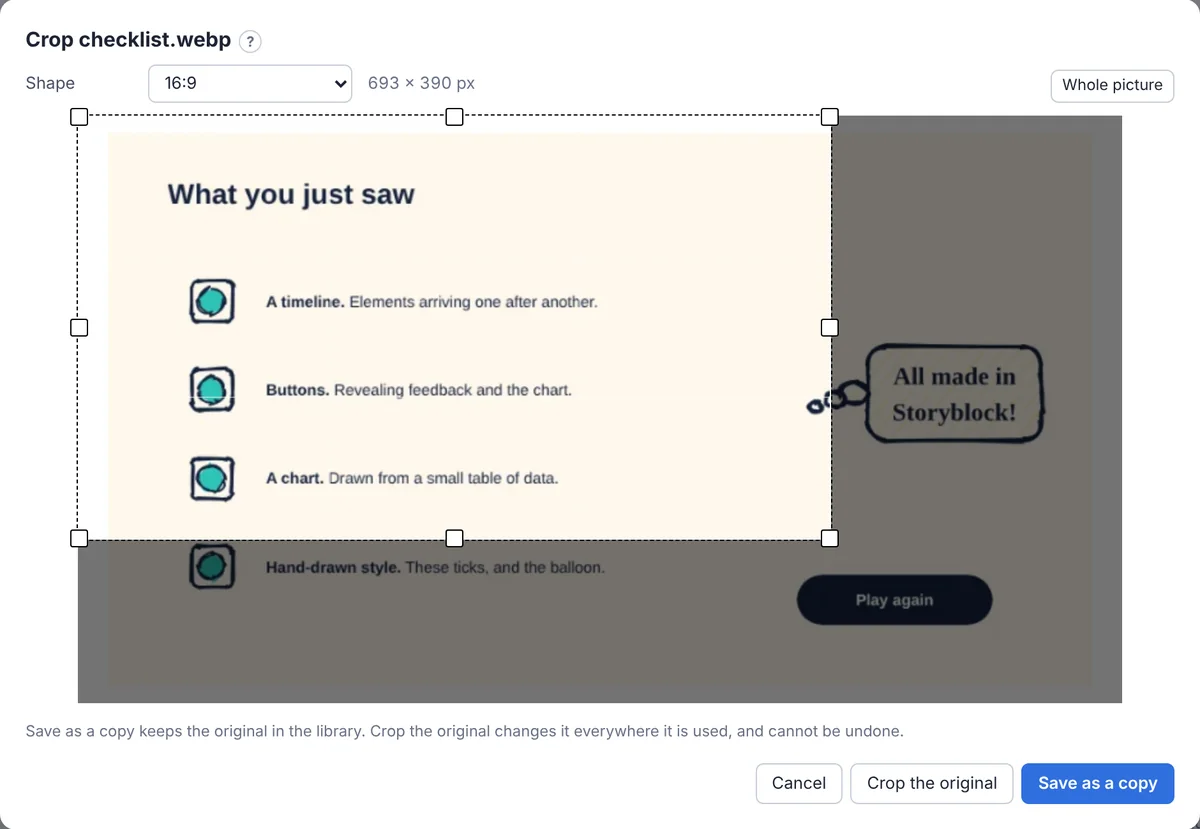
The crop window: a scene picture with a 16:9 crop box and its handles, and buttons to save the crop as a copy or crop the original.

Media that holds back the way on, pictures cropped in place, and text that fits its box.

  • When it has been played: a video, audio or embedded clip can set a flag once a chosen share of it has been played, counting only the parts actually played, for YouTube and Vimeo as well as files. A Watch to continue template waits on it.
  • Crop pictures in the media library or from an image layer, as a copy or over the original.
  • Smaller, larger, Fit and Reset for the text in a text box.
  • The inspector can be widened, like the panel on the left.

0.8.0

PDF import, notes and merging

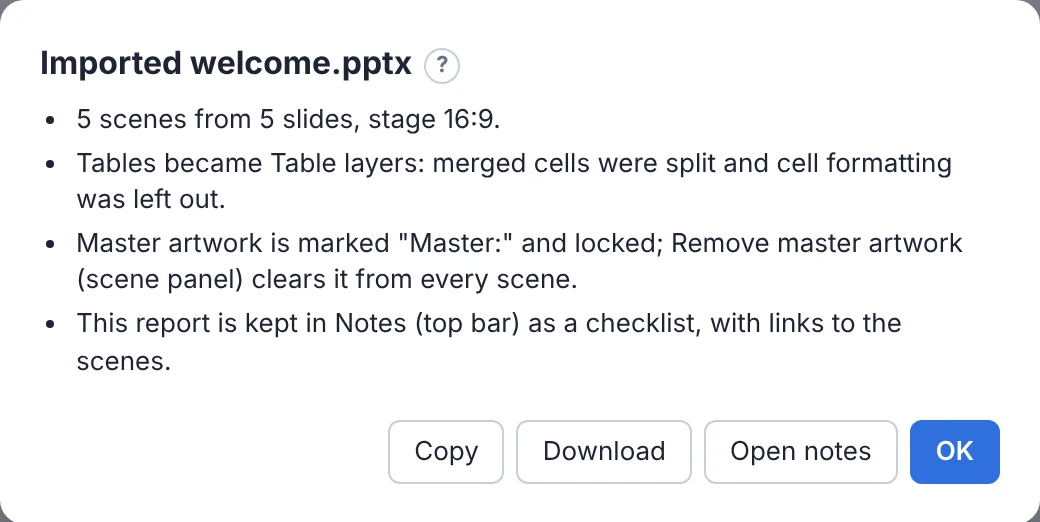
The report after importing a PowerPoint file: five scenes from five slides, with what was changed listed, and buttons to copy, download or open the notes.

PDFs become scenes, import reports become a checklist, and several elements become one.

  • PDF files: each page's artwork becomes the background, with its text on top, ready to edit.
  • Notes: Markdown kept with the project and never shown to learners. Import reports land there as a checklist, linked to the scenes they concern, and can be copied or downloaded.
  • Merge, Join text and Split for several picked elements.
  • Up and Down move through the lists and the timeline; the arrow keys nudge only on the stage.
  • Undo stays on the scene where the change was made.

0.7.0

Storyline import

Storyline projects open as scenes.

  • Storyline files: slides become scenes, layers become elements that buttons show and hide, and quiz slides are kept as they look. Button JavaScript is never run.

0.6.0

Media library, PowerPoint import, tables and help

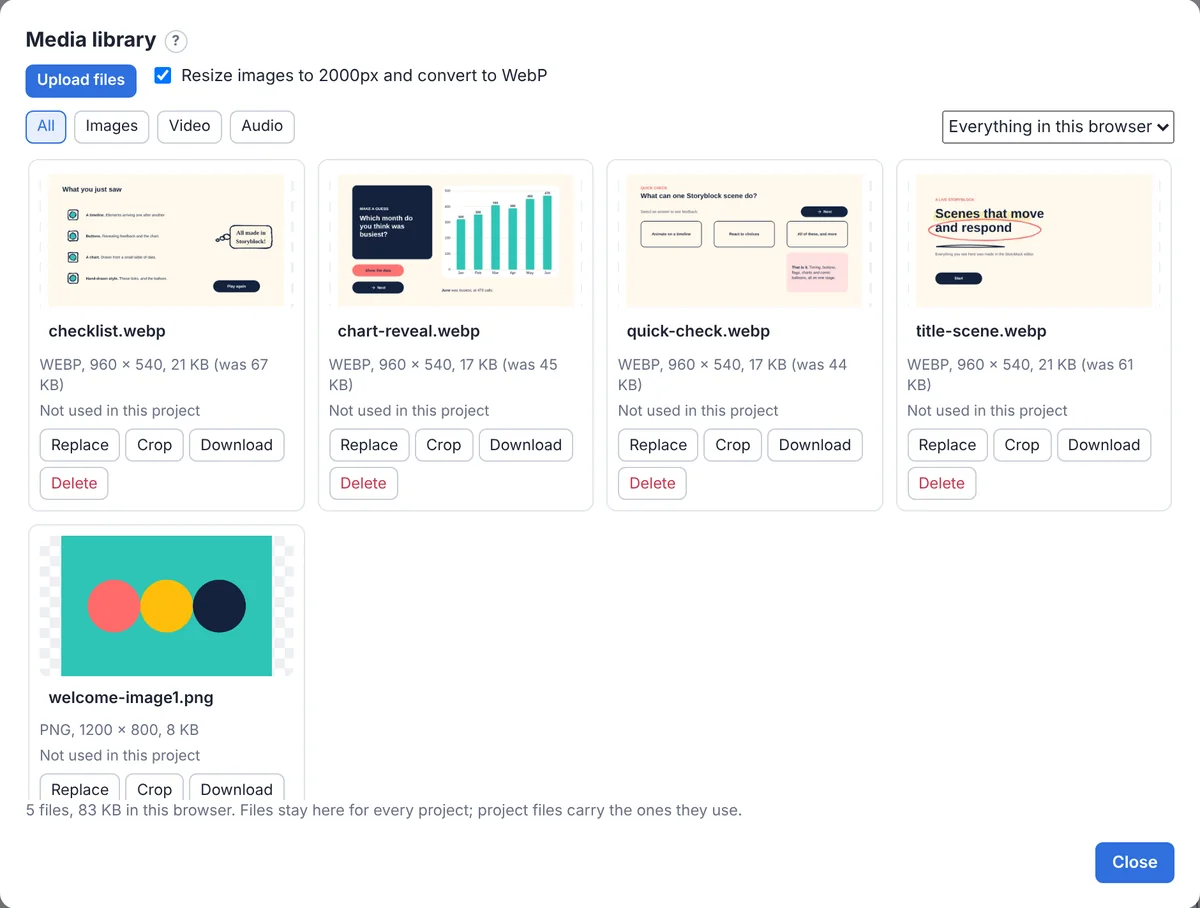
The media library: scene pictures as WebP files, with Replace, Crop, Download and Delete under each.

Pictures, video and sound kept in the browser, slides turned into scenes, and help beside the editor.

  • The media library keeps pictures, video and audio in this browser for every project, carries them inside project files and exports, and turns large pictures into smaller WebP files.
  • PowerPoint files: each slide becomes a scene, with its text, pictures, shapes, tables and charts, the master's artwork as locked backdrops, and entrance animations in order.
  • A table layer for text and numbers.
  • SCORM 2004 and 1.2 packages for any LMS.
  • Help topics in a panel beside the editor, from ? buttons on each section, and as web pages search engines can read.
  • The timeline opens as a drawer beneath the stage.

0.5.0

Online, hand-drawn templates and storyboards

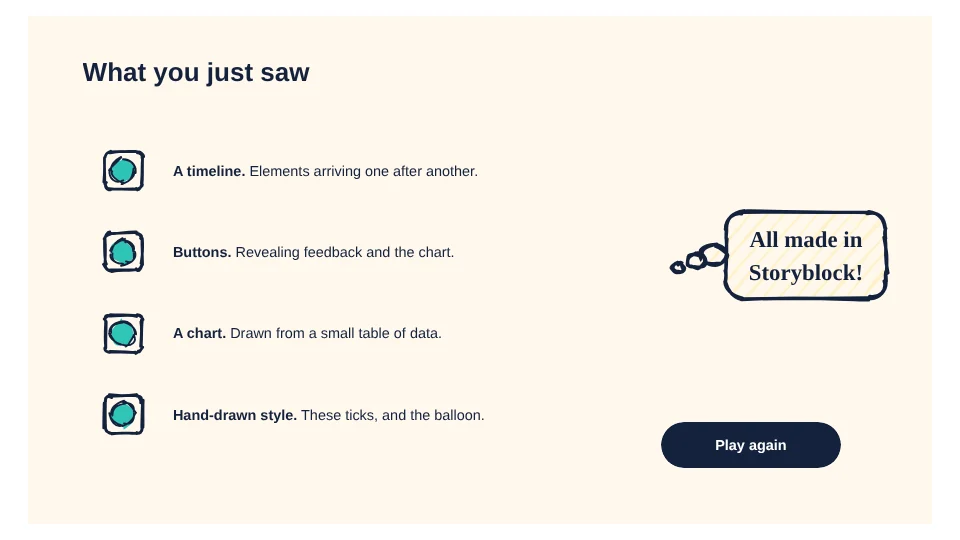
A hand-drawn checklist with scribbled boxes and a thought balloon saying: All made in Storyblock!

Storyblock goes public at storyblock.frumbert.org.

  • The editor online at storyblock.frumbert.org, free, with its source under the CC BY-NC-SA 4.0 licence.
  • Hand-drawn templates: marker titles, doodle checklists and sketchnote processes.
  • A PDF storyboard of every scene, element and timing, for reviewers.

0.4.0

Charts

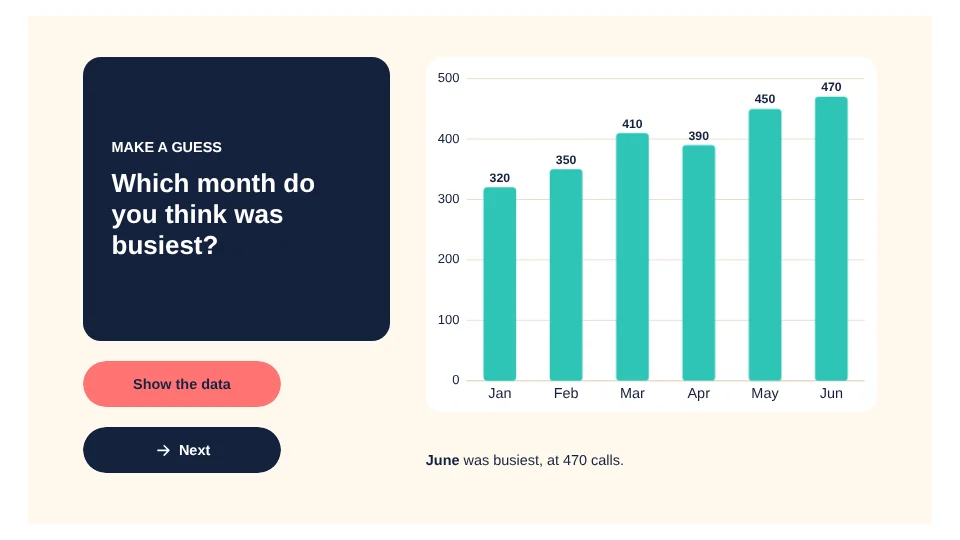
A scene asking which month was busiest, with a bar chart revealed beside it.

Charts drawn live from a small table of data.

  • A chart layer: bar, stacked, line, pie, donut, radar, scatter, bubble and quadrant charts, with data pasted from a spreadsheet.
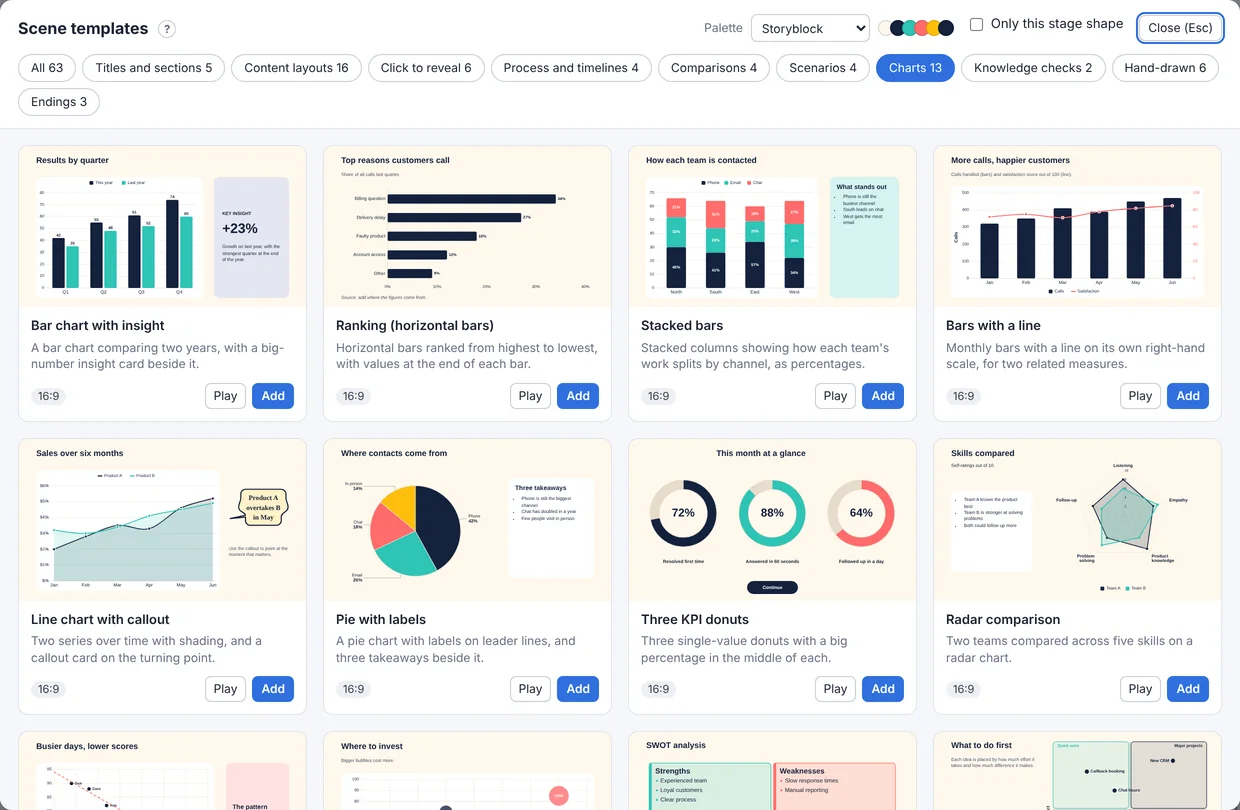
  • Chart templates in the template gallery.

0.3.0

Scene templates

The Scene templates window: chart templates in the Storyblock palette.

Ready-made scenes to start from.

  • Templates for titles, layouts, click to reveal, processes, comparisons, scenarios, knowledge checks and endings, each one ordinary elements you can change.
  • Palettes that colour a template as it is added.

0.2.0

A hand-drawn look

Shapes and outlines that look drawn by hand.

  • A Hand-drawn setting for shapes and outlines, from neat to sketchy, with hatched, cross-hatched and dotted fills, drawn by Rough.js.

0.1.0

The first build

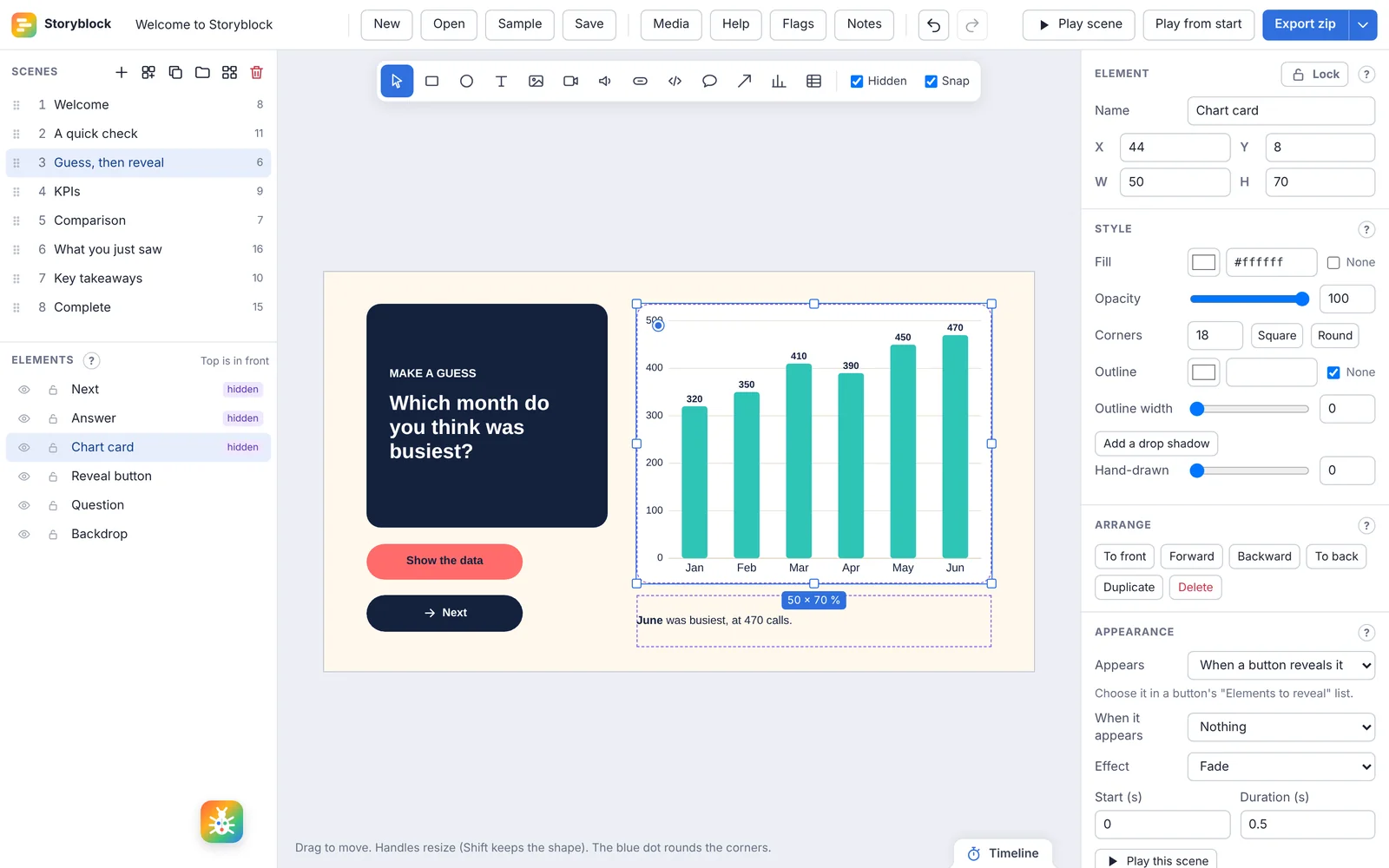
The Storyblock editor: scenes listed on the left, a chart scene on the stage, and the selected element's settings on the right.

A scene editor that runs in the browser, for the Storyblock player in Mighty.

  • A stage to draw on, and elements made of layers: text, pictures, video, audio, embeds, buttons and shapes.
  • Entrances with an effect, a start and a duration, and elements that wait for others, for a button or for a flag.
  • Buttons that reveal elements, finish the scene, go to another scene or open a link.
  • Project files to save and open, and a Mighty zip with the player and its form.

That is the whole story so far. Ideas and problems are welcome on the feedback tracker.