
Scenes that move, branch and respond.
Storyblock is a scene editor that runs in your browser. Put text, pictures, video, buttons, charts and comic balloons on a stage, choose when each one arrives, and let learners' choices change what happens next. Then publish it to Articulate Rise, Mighty, an LMS or a page of its own. It is free.
Runs in any up-to-date desktop browser. No account, nothing to install. What you make plays on phones too.
One block, many scenes, all of it yours to arrange
A Storyblock is a run of scenes that learners move through: a title, a hotspot activity, a short branching scenario, a chart with a takeaway. Each scene is a stage where elements sit wherever you put them.
- Draw on a stage
- Pick a tool and drag. Elements overlap freely, snap to each other, and align, spread and resize as a group.
- Elements made of layers
- Stack text, pictures, video, audio, embeds, buttons, shapes, charts, tables and comic balloons inside one element.
- Timing you can see
- Every element has an effect, a start and a duration, laid out on a timeline beneath the stage.
- Choices that matter
- Buttons reveal and hide elements, set flags and jump between scenes, so later scenes can follow what a learner chose.
- 63 ready-made scenes
- Titles, reveals, processes, comparisons, scenarios, charts, knowledge checks and hand-drawn sketches, in 7 palettes.
- Publish where your learners are
- Articulate Rise through Mighty or a code block, SCORM 2004 or 1.2 for any LMS, or a standalone web page.
What's new in version 1.1.0,
Scene overview
Every scene at a glance, with lines showing where its buttons lead.
Every version, and what changed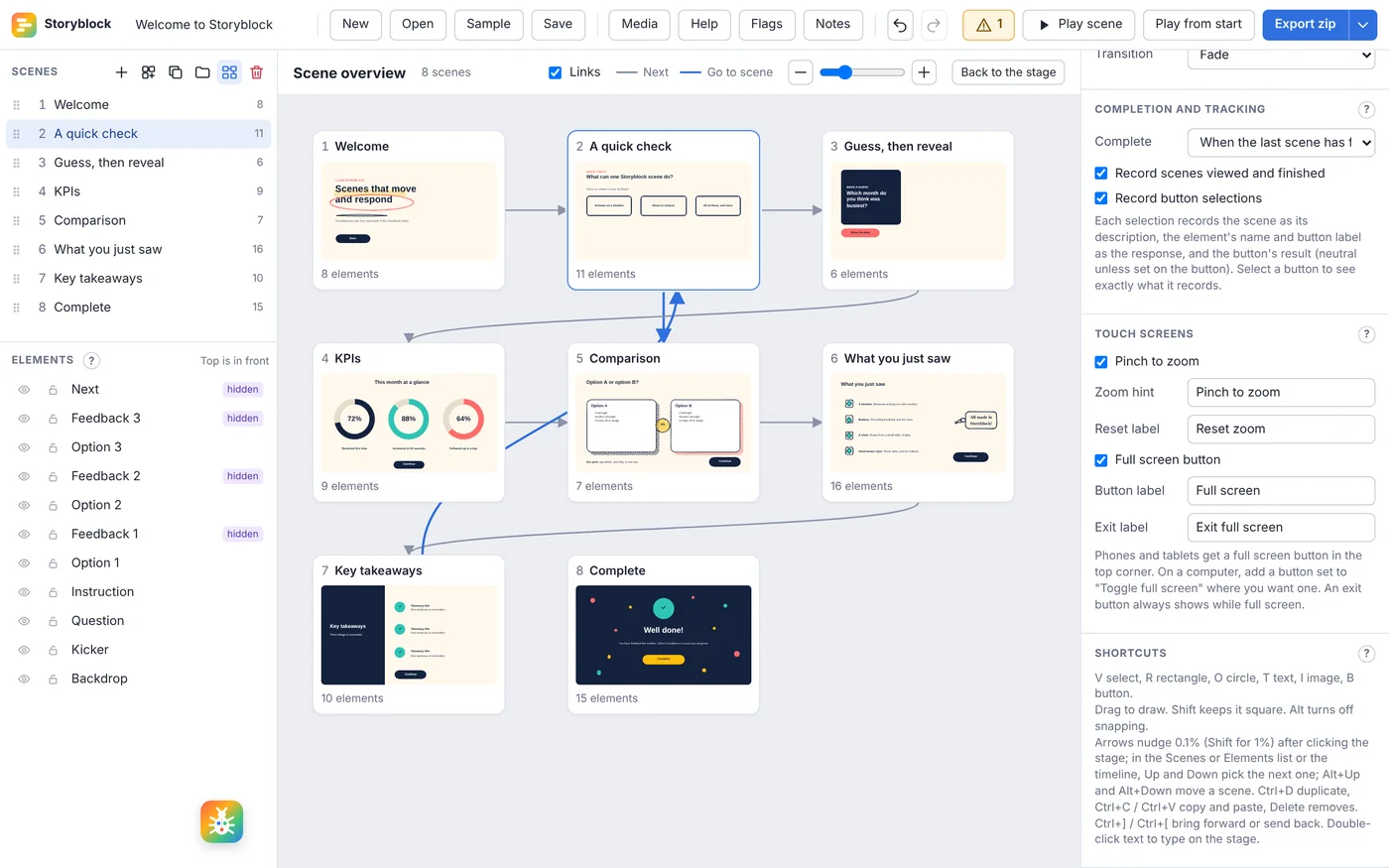
- The overview button above the scene list swaps the stage for a picture of every scene, in order. Click a scene, or move to it with the arrow keys and press Enter, to open it.
- Links draws leader lines with arrows from each scene to the scenes its buttons lead to: grey for Finish the scene, blue for Go to scene. Forward jumps arch over a row and jumps back run under it, and pointing at a scene brings its own lines forward.
- Five picture sizes, from small to large.
- Each picture notes the scene's group, whether it only shows on a flag, and when it has no way on.
- Scene rows have a grip to drag them by, and Alt+Up and Alt+Down move the selected scene. The buttons above the list are now add, add from a template, duplicate, group, overview and delete.
See it as learners will, while you build it
The stage in the middle is the scene, at its real shape: wide, square, portrait or 4:3. Scenes and their elements are listed on the left; whatever you select is set up on the right.
- Type straight onto the stage. Double-click any text to change it in place, with bold, links, lists and sizes a click away.
- Pick several and work on them together. Align their edges, spread them evenly, match their sizes, or merge them into one element.
- Hide what is in the way. The eye beside each element hides it on the stage while you work underneath, without changing the scene.
- Play any scene in one click, exactly as learners will see it, with a warning badge for anything that would leave them stuck.
Timing that tells the story
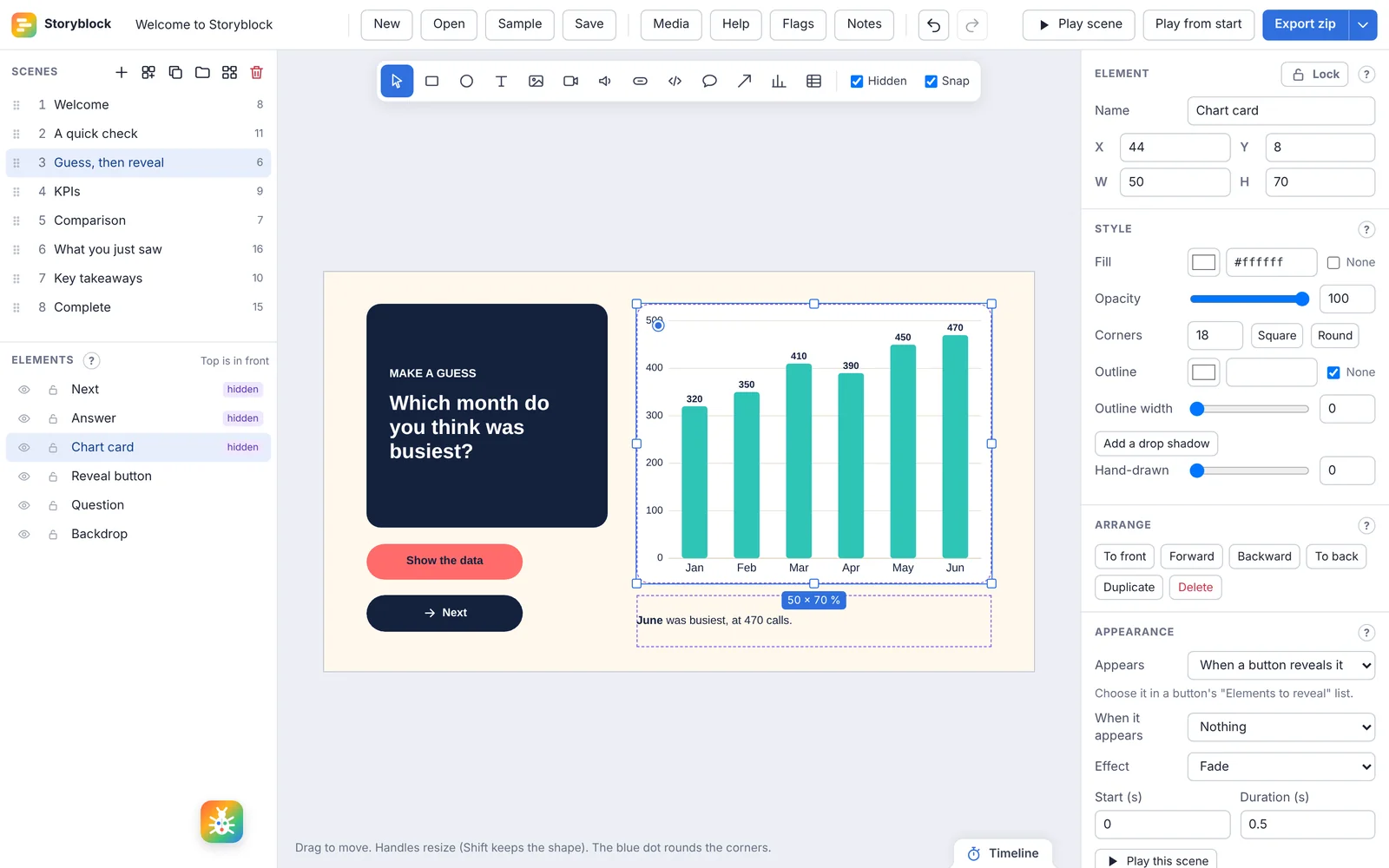
Elements arrive with a fade, a slide, a zoom or from beyond the edge of the stage. Pull up the timeline to see every element's start and length, and drag the bars to change them.
- Chains, not stopwatches. An element can wait for others to appear, a button to reveal it, or a flag to be set, and its start counts from that moment.
- Calm for those who need it. Learners who ask their device for reduced motion get a short fade instead of every slide and zoom.
- Watch to continue. A video, audio or embedded clip can hold back the way on until enough of it has been played.

Buttons, flags and branching
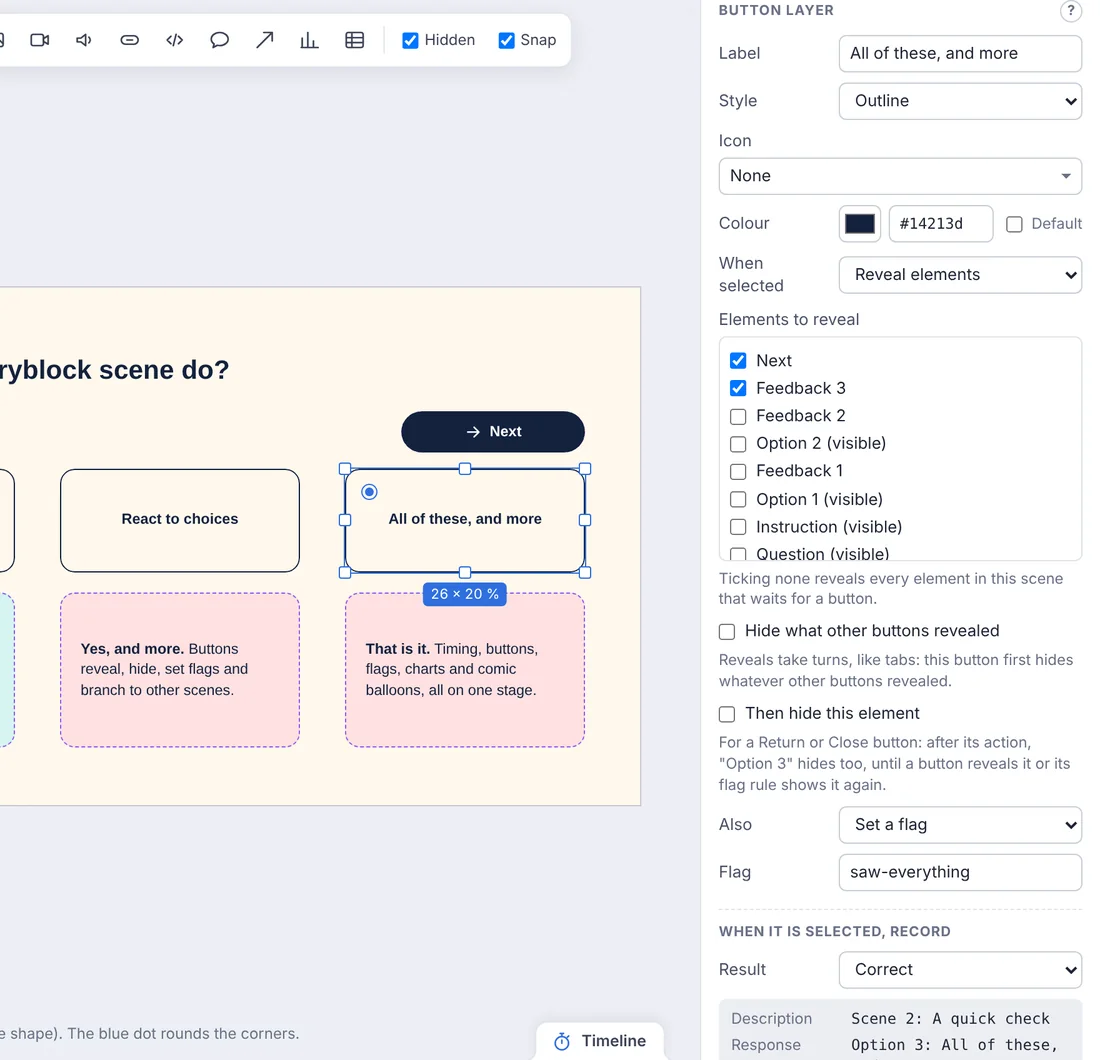
A button can reveal feedback, hide it again, open a link, finish the scene or jump to any other. Each one can also set or clear a flag: a remembered choice, like chose-escalate, that later elements and whole scenes can depend on.
- Scenarios without spaghetti. Show a reply only if the learner chose kindly, skip a scene they have already earned, or end on a debrief that reflects every decision.
- Feedback that tidies itself away. A Return button can hide the feedback and itself, leaving the answers to try again.
- Results your LMS can read. Each selection can be recorded as an interaction with the scene, the choice and a result of correct, incorrect, unanticipated or neutral.
- Icons on buttons for next, back, replay, help and forty more, with or without a label.
63 scenes to start from
Choose a palette and add a template after the scene you are on. Each one is ordinary elements you can change: the timings, chains and buttons are already done, so a template is also a quick way to learn how a technique is built.
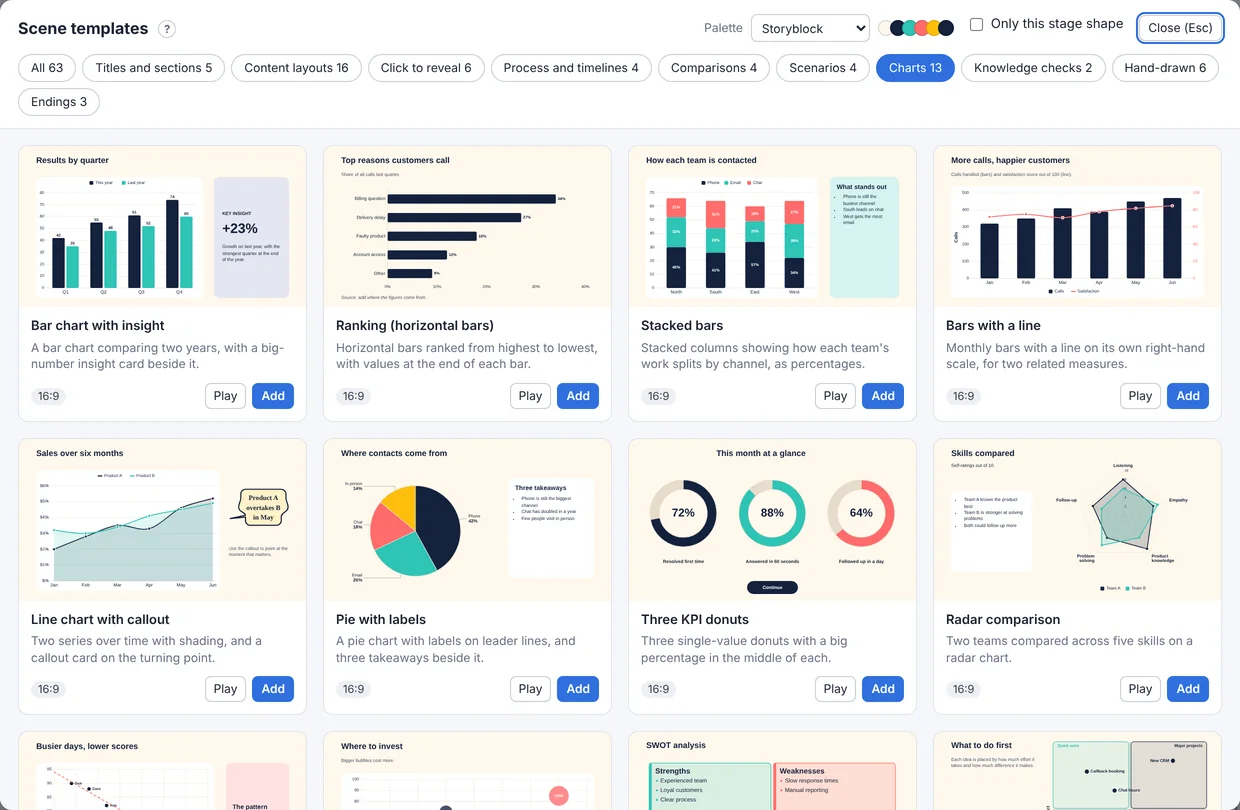
- Titles centred, split, full-bleed and section breaks
- Layouts cards, quotes, big numbers, agendas, video with notes
- Click to reveal hotspots, tabs, flip cards, step builders
- Processes steps, timelines, cycles and pyramids
- Comparisons two options, do and don't, before and after, myth or fact
- Scenarios branching choices, flags, comic and phone conversations
- Charts bars, lines, pies, radar, scatter, bubbles, SWOT and matrices
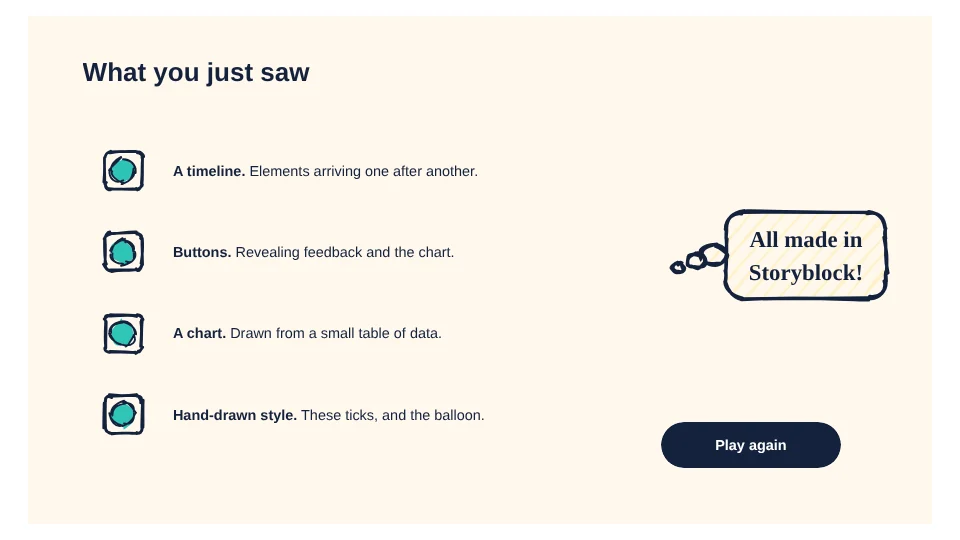
- Hand-drawn marker titles, doodle checklists and sketchnote processes
Charts, comic balloons and a hand-drawn line
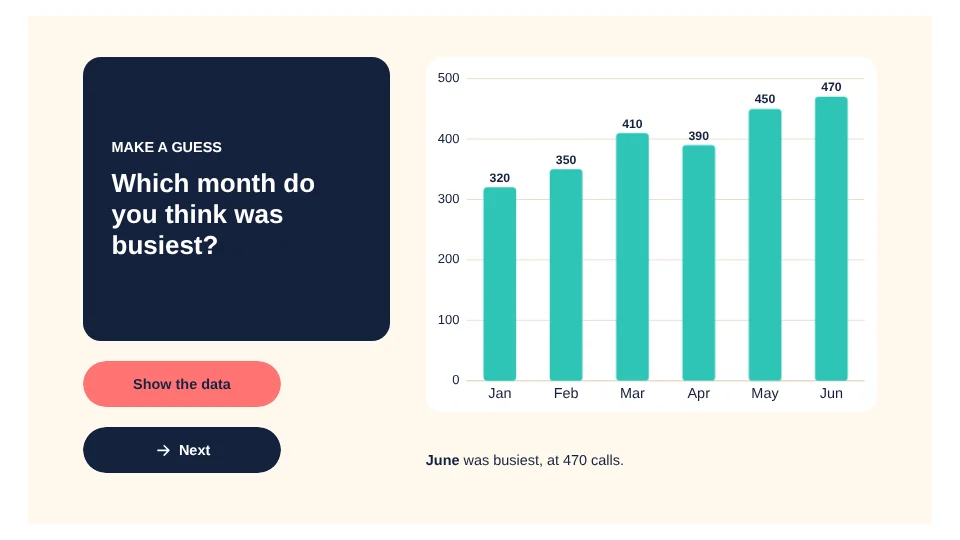
Some things deserve more than a picture of themselves. Storyblock draws them live, so they animate in, scale with the stage and stay sharp on every screen.

Start from the slides you already have
Open a presentation and each slide becomes a scene you can edit, not a flat picture of one.
- PowerPoint. Text keeps its formatting; pictures, shapes, tables and charts come across, with the slide master's artwork as locked backdrops and entrance animations in order.
- Storyline. Slides, layers and their triggers become scenes, elements and buttons, with quiz slides kept as they look.
- PDF. Each page's artwork becomes the background, with its text on top, ready to edit.
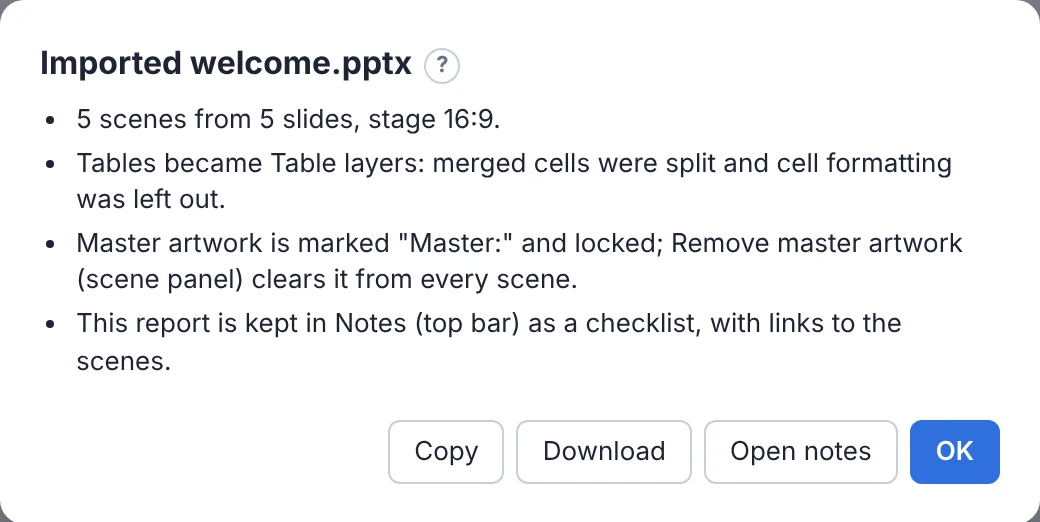
- A report to work through. Anything approximated or left out is listed in the project's notes as a checklist, linked to the scenes it concerns.
A media library that packs itself
Drop pictures, video and audio onto the stage or into the library. They are kept in your browser, shared by every project, and carried inside project files and exports, so nothing goes missing on the way to your learners.
- Smaller without trying. Large pictures are resized and converted to WebP as they come in.
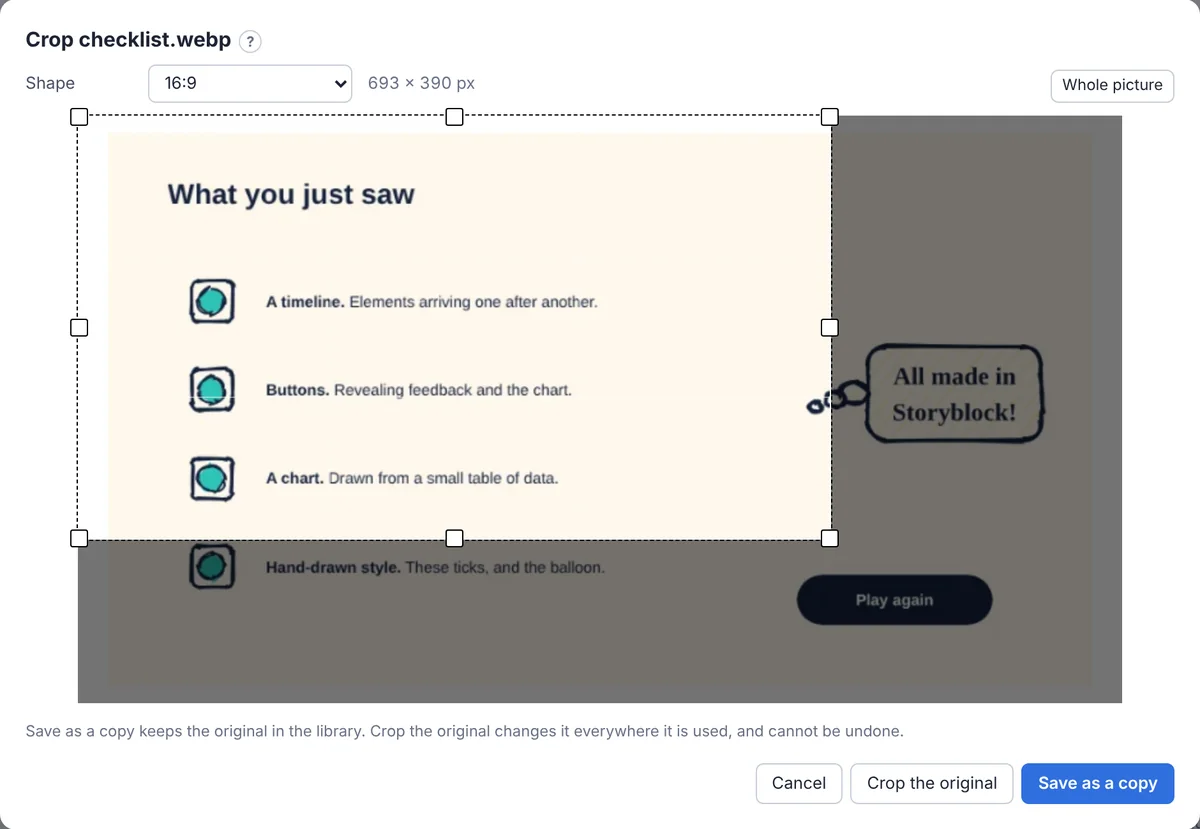
- Crop in place. Crop to the element's shape, the picture's own or a common ratio, as a copy or over the original.
- Replace once, change everywhere. Every element using a file follows when you replace it.
Publish where your learners are
One project, six ways out. The checks behind the warning badge run before every export, so you hear about a stuck learner before they do.
- Mighty zip
- A new Mighty Studio block for Articulate Rise, with your scenes as its starting content.
- Project file for Mighty
- Update a Storyblock block already in a Rise course, without rebuilding it.
- Rise code block
- A zip to upload into a Rise code block, no Mighty needed.
- SCORM 2004 or 1.2
- For any LMS. Completion, resume and choices recorded as interactions.
- Standalone page
- One HTML file and its media, for a website, an intranet or an email.
- PDF storyboard
- Every scene, element and timing on paper, for a reviewer to mark up.

Your work stays on your computer
Storyblock keeps your project and media in your browser and saves as you go. Nothing is uploaded unless you export it and put it somewhere yourself. There is no account, and no AI service reading your writing.
Save gives you a project file to keep, share or open on another computer, with its media inside. Notes travel with the project too, for your own to-do list, and never reach learners.
Built for every learner
- Keyboard and screen readers reach every button, with alt text on pictures and names on icon buttons.
- Reduced motion is respected automatically.
- Learners keep their place: their scene and choices resume where they left off.
- Built-in help opens beside the editor, and works without a connection.
Part of a family of tools
Storyblock sits alongside free tools for the parts of e-learning that deserve their own editor. Storyblock packages play inside Makoto courses.
- MakotoWhole e-learning courses in your browser, with team workspaces and SCORM, cmi5 and web exports.
- BranchBranching conversation scenarios, laid out as a flowchart of scenes and choices.
- SquizzyQuizzes with sections and question banks, for Rise, Mighty and SCORM 2004.
- RisefixOpen a published Rise zip to explore it, find and replace, embed assets, or compare two exports.
- TestbedPlay SCORM, cmi5 and xAPI packages in your browser and see every call they make.
- TrackrIdeas, feedback and bug reports for every one of these tools, Storyblock included.
Run it yourself, or change how it works
Storyblock needs nothing but a web server, or none at all: the editor is a single HTML file. Put it on your own site or intranet, or download the source to build your own version.
-
The Storyblock app
The editor as one HTML file, with its help pages and icons, ready to put on any web server. Open the file straight from your computer if you prefer.
Download the app 442 KB -
The source code
Every script, stylesheet, template and help topic, the Storyblock player, and the build script that joins them. Needs Python 3 to build, and Node.js for the hosted help pages.
Download the source 1.7 MB -
The live demo
The four scenes playing at the top of this page, as a Storyblock project file. Open it in the editor to see how the templates are put together.
Download the demo 27 KB
Pricing
Free for everyone, with every feature
No plans, no seats, no trial. Storyblock's code is shared under the Creative Commons Attribution-NonCommercial-ShareAlike 4.0 licence (CC BY-NC-SA 4.0): use it, share it and adapt it within that licence's terms.
Found a problem or have an idea? Tell us on Trackr, or read the help topics.
Updated 27 November 2026. Your projects stay in this browser until you save or export them.